
Setting Up Your First Revit MEP Project: A Beginner's Guide
Setting up your first Revit MEP project correctly is crucial for efficient workflows and accurate designs.

Revit MEP, a powerful Building Information Modeling (BIM) software, streamlines mechanical, electrical, and plumbing (MEP) design. Setting up your first Revit MEP project correctly is crucial for efficient workflows and accurate designs. This guide walks beginners through the essential steps: selecting templates, linking architectural and structural models, and configuring views and levels for MEP design. By following these steps, you can boost your engineering career and unlock the potential of Revit MEP.
Why Proper Setup Matters
A well-set-up Revit MEP project ensures all disciplines—mechanical, electrical, and plumbing—work seamlessly within a single model. Unlike traditional 2D CAD, Revit’s parametric 3D models integrate geometry and data, generating plans, sections, and schedules automatically. Proper setup minimizes errors, enhances collaboration, and saves time, especially for beginners transitioning from tools like AutoCAD.
Using Templates to Start a Revit MEP Project
What Are Project Templates?
Project templates in Revit are pre-configured files containing settings, families, and views tailored to specific disciplines. They include predefined graphic requirements, annotation families, and system families, ensuring consistency across projects. Revit provides default templates, such as the Systems template, designed for MEP projects.
Selecting a Template
To start your project:
Go to File > New > Project.
In the New Project dialog, select a template like “Systems-Default_Metric.rte” for MEP work.
If your firm has custom templates, use those to align with company standards.
Choosing the right template sets up MEP-specific tools and content, saving time. You can also customize templates via File > Options > File Locations to set a default template for future projects.
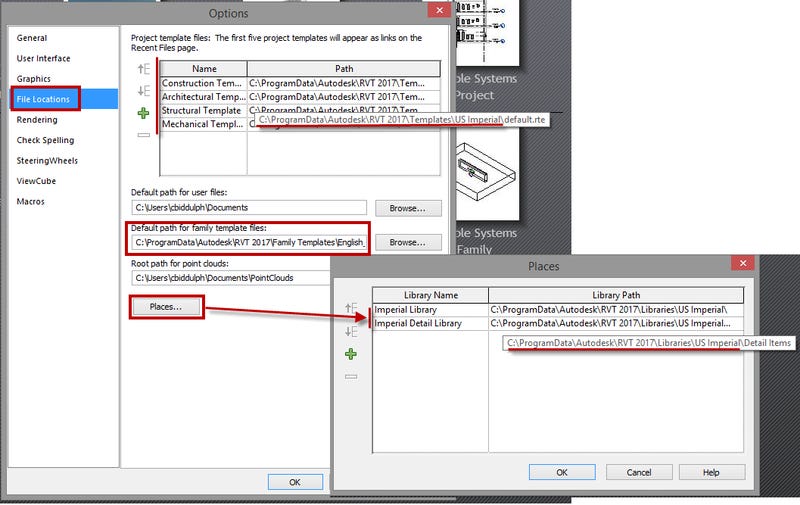
Customizing Templates
For advanced users, creating custom templates tailored to your firm’s standards can streamline workflows. Include MEP-specific families, line styles, and view settings to match project requirements. Regularly update templates to incorporate new features, such as those in Revit 2025, which introduced MEP Model Consistency Check for connection accuracy.
Linking Architectural and Structural Models
Why Link Models?
MEP projects typically rely on architectural designs for context. Linking architectural and structural models into your Revit MEP project ensures coordination across disciplines. This integration allows MEP systems to align with the building’s layout, reducing clashes and rework.
Steps to Link Models
To link an architectural model:
Navigate to the Insert tab and click Link Revit.
Select the architectural model file (e.g., “arc plan.rvt”).
Set positioning to Origin to Origin or use shared coordinates for alignment.
Use the Manage Links tool to reload, unload, or remove links as needed.
For structural models, repeat the process, ensuring all linked models align correctly. Coordination is key—verify that levels and grids match between models to avoid discrepancies.
Best Practices
Use Origin to Origin for initial alignment, then adjust with shared coordinates if needed.
Regularly update linked models to reflect architectural changes.
Create worksets (e.g., “Z - Arch_Tower A”) for each linked model to manage visibility and performance.
Setting Up Views and Levels for MEP Design
Types of Views for MEP
Effective MEP design requires specific views to visualize systems:
Floor Plans: Show MEP systems on each level.
Ceiling Plans: Display lighting and HVAC layouts.
Sections: Coordinate vertical elements like ducts and pipes.
3D Views: Provide an overall view of MEP systems.
Coordination Views: Combine all MEP disciplines for clash detection (Autodesk Community).
Creating Views
To create a floor plan:
Go to the View tab.
Click Plan Views > Floor Plan or Reflected Ceiling Plan.
Select the levels you need from the linked model or your project.
For discipline-specific views (e.g., HVAC, electrical), duplicate views and apply filters to show only relevant systems.
Adjusting View Range
MEP elements like ducts and pipes are often in ceiling spaces, requiring view range adjustments:
Open the Properties pane and click Edit next to View Range.
Set Top to the level above with a negative offset (e.g., -0’-8” for an 8” slab) or to the associated level with a positive offset (e.g., 8’-0”).
Adjust the Cut Plane to cut through ducts (e.g., 8’-0” above the level).
Set Bottom and View Depth to 0’-0” unless specific elements require visibility.
Use Visibility/Graphics Overrides to turn off categories like ceilings to see through obstructions.
Managing Levels
Levels are typically defined in the linked architectural model. To use them:
In an elevation view, verify levels align with the linked model.
Delete default levels in your MEP project to avoid duplication.
If MEP-specific levels (e.g., for plenums) are needed, add them:
Go to the Architecture or Structure tab.
Click Level and draw new levels in an elevation view.
Coordinate with architects to ensure consistency across models.
Additional Tips and Best Practices
Collaboration with Worksharing
For projects with multiple users, enable worksharing:
Go to the Collaborate tab and click Collaborate.
Create worksets for each discipline (e.g., Mechanical, Electrical) and linked models.
Save as a central file and use element borrowing for efficient collaboration.
Model Maintenance
Maintain model health by:
Auditing: Check for errors before opening the model.
Compacting: Reduce file size via File > Save As > Options.
Reviewing Warnings: Address issues in the Review Warnings dialog.
Learning Resources
To deepen your Revit MEP skills, explore:
Autodesk Documentation: Official guides on project setup.
Online Courses: Platforms like LinkedIn Learning offer Revit MEP courses.
Forums: Engage with communities on AUGI or Reddit r/RevitMEP.
Revit 2025 introduces features like MEP Model Consistency Check, enhancing connection accuracy, but the core setup process remains consistent.
Conclusion
Setting up your first Revit MEP project involves selecting the right template, linking architectural and structural models, and configuring views and levels tailored to MEP design. By following these steps, you’ll establish a solid foundation for efficient and accurate design work. Practice these basics, explore advanced features, and leverage resources to boost your career in MEP engineering.